OmniFocus can present your tasks with a lot or a little information, depending on your tastes. One place that The Omni Group have recently made this even more useful is on perspectives in iOS.
As an example, here is my Current perspective:
[caption id="attachment_51771" align="aligncenter" width="230"]
My current "Current" perspective in OmniFocus on iOS[/caption]
My current "Current" perspective in OmniFocus on iOS
It displays tasks with only the projects they are related to showing. OmniFocus gives you the option to have Projects or Tags show or not show in any combination. To adjust this,
- Select the Perspective editing icon:
[caption id="attachment_7651" align="aligncenter" width="300"]
Select Perspective Editing Icon[/caption]
Select Perspective Editing Icon
Here is an overview of my Current Perspective settings:
[caption id="attachment_51770" align="aligncenter" width="152"]
Overview of "Current" Perspective[/caption]
Overview of "Current" Perspective
At the bottom, you can see where the options are to adjust the presentation of tags or projects:
[caption id="attachment_7650" align="alignnone" width="300"]
Show project paths on[/caption]
Show project paths on
For instance, if you wanted to see tags and not projects, adjust the settings so they would appear as follows:
[caption id="attachment_51769" align="aligncenter" width="300"]
Show tags on[/caption]
Show tags on
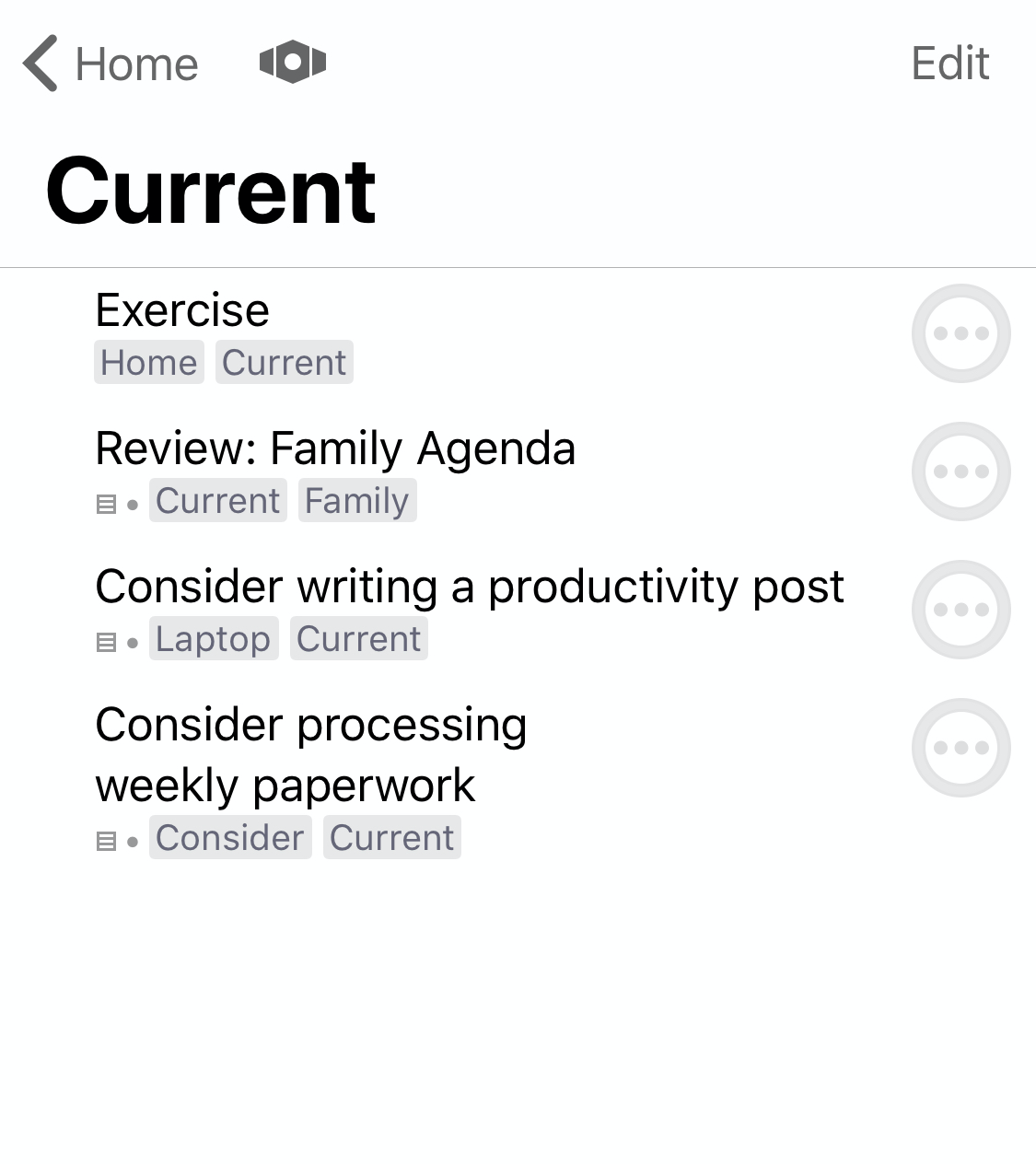
You should see something like:
[caption id="attachment_7652" align="alignnone" width="267"]
Perspective with tags visible[/caption]
Perspective with tags visible
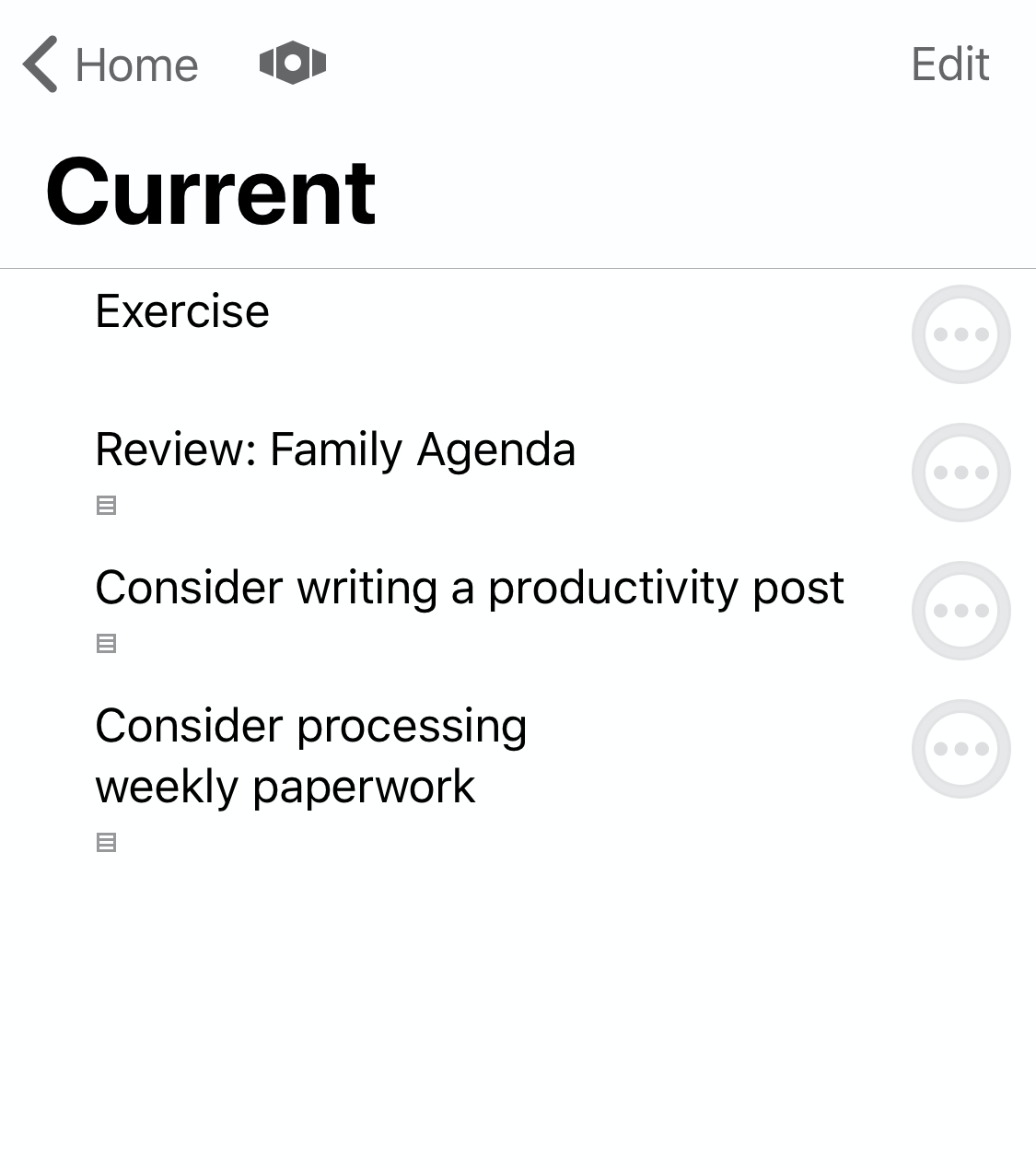
You could also have neither show:
[caption id="attachment_7647" align="alignnone" width="266"]
Perspective without tags or projects visible[/caption]
Perspective without tags or projects visible
For this particular perspective, I’m not a fan of seeing my tags, but I do like the projects showing as presented in the first image above.
Also, check out the parallel post about clearing visual clutter for the Mac client.